It's been almost 18 months since I've done my last app roundup, and a whole lot has changed since then, so I thought it was time to do another one. I'll refer you to the previous post to read up on how Android works, the difference between apps and widgets, and other info like that. For this post, I want to focus on the best apps that I'm currently using or have used recently. There will be some overlap compared to the previous list, but there are quite a few new entries, too. Wherever possible, I'll link to free versions so you can try them out without any financial commitment. Launchers
Action Launcher - I love this launcher! Up until the past couple weeks, it was my launcher of choice. Most launchers have essentially the same features, but this one has some genuinely unique capabilities. The app drawer is hidden on the left side of the screen, so a swipe in from the edge reveals it, even if you're in another app. It scrolls very quickly, so you can get to every other app on your phone in a hurry. There's also a "quickdrawer" that is essentially the same thing when you slide in from the right edge of the screen, but you can put whatever you want in it - apps, widgets, contacts, etc. The other feature I really like about Action Launcher is that it has shutters and covers, which basically give you one-swipe access to widgets (from the app icon) and the dual-functionality of both tapping to start an app and swiping to open a folder from the same app. That may sound confusing, but hit the link above and watch the sample video. It's very slick, and makes Action Launcher stand out from the crowd. There is a free version that lets you try it out, and a paid version which opens up all the features available.
Apex and Nova - Two great established launchers, both of which I have used extensively. Both have lots of customization and offer snappy performance. You can't go wrong with either one. Both have free versions you can try out and paid versions to unlock all features.
Next Launcher 3D - This is the best 3D launcher in the Google Play store, hands down. I've tried several, and all of the others are buggy, sluggish, and lack features. Next, however, is top notch. It is slightly slower than the other launchers listed here, but offers a gloriously amped up visual interface that cannot be found anywhere else. The effects are outstanding, and the level of detail is tremendous. If you like visual bling and whizbang awesomeness, this one is for you; it'll definitely impress the (geeky) chicks at parties. It's made by the same people who made Go Launcher EX, which was a terrific launcher until they gunked it up with ads and sales pitches for their other products. Hopefully they won't do the same to Next 3D. The only catch is that it's gaudily expensive...$17!!! I would never have purchased it myself, but Amazon has been running a bunch of specials lately where downloading a certain app grants you Amazon coins which can be used for other purchases in the App store, so I actually got it for free. You can try the full functionality for a few days via the trial version to see if you like it, even if you don't have any Amazon coins. For a quick look at the visual differences in a "3D" launcher, check out this demo video:
Browsers
Dolphin - In my opinion, this is the best overall browser on Android. It has a great combination of speed, features, add-ons to increase functionality (like one-tap integration with Dropbox or Pocket), and bookmark/tab synchronization. I rely particularly heavily on the sync tabs feature, which allows me to open any tab on one device -- whether my laptop at home, my phone, or my Nexus tablet -- and then pull it up on any other device. The best part? It's free.
Next - This one is made by the same people as Next Launcher 3D. It's lean, it's fast, and it's simple, though it still packs almost as many add-ons and other functionality as Dolphin. If it had tab sync, I'd be hard pressed to pick a winner.
Chrome, Firefox - I haven't used either of these for months. I used to use Chrome as my primary Android browser, but a particular update broke the sync functionality, and I couldn't ever restore it. It's probably fine now, but Dolphin worked seamlessly at the time and has continued working seamlessly, so I stayed with it.
Messaging/Communication
chompSMS - This is my messaging app of choice. It's simple and has a very clean interface, yet it has just enough customization available that you can make it look how you want. It has some nice features that the basic apps don't (scheduled sending, customized notifications), but none of the bloat that Handcent or Go SMS Pro have.
Pushbullet - This is a new one since the last list. It's another way to talk between various devices, including Android, iOS, Windows, and Mac. It's dead simple to send a link, a note, or a file from any device to any other, and it's blazing fast, too. This is a very slick multi-platform way to communicate.
Hangouts - If you have Android, you've already got it. Personally, I find this a necessary evil of using Google. It works fine, but it's got a dull, kloodgy interface with zero customization, terrible notifications, and little more than basic messaging functionality. Bleh.
Social Media
Talon - This is a pretty good Twitter client. The interface is very slick, and you can tell the devs went out of their way to create a good visual experience with it. There are one or two things that could be made simpler, but nothing major. No free version, unfortunately; I picked this one up with free Amazon coins, too.
Carbon - In my opinion, this is one of the two best Twitter clients that are fully functional but still free. A couple little oddities, but generally pretty simple to use and has a very visually appealing interface. Unfortunately, if you don't yet have logins through Carbon, you're out of luck - they've hit the Twitter token wall, so no new sign-ups are allowed at this time.
Falcon Pro - This is probably my favorite Twitter client of all, so it is with much regret that I only had one login when it hit the token wall. The dev pulled it from the Google Play store and offered it for free to everyone as a workaround, but in my experience it's been a little wonky in terms of refreshing properly after that. It's a crying shame, because I think Falcon Pro was not only a visual masterpiece, but the most intuitive Twitter client I've used.
Facebook - I confess, I hate Facebook. No, seriously, I can't stand it. I tried several third party clients in a desperate attempt to replace it, but none of them were reliable enough or had all the core features in place. *sigh* It's a necessary evil.
Google+ - Another built-in Google product, this one's actually pretty good. You may not know it, but Google+ is now the second largest social media platform, and growing fast. It still runs generally pretty tech-savvy, with lots of developers and tech writers, but more normal people are getting on there, too. It's pretty slick, and definitely worth a look.
GroupMe - This is a pretty recent addition for me, and is a great app for when you have a group of people who need to all stay in touch and in sync. I wouldn't use it as my primary messaging app, but for its niche purpose it is excellent.
Tools
CamCard - This is a great little tool for scanning business cards and adding the info to your contacts. It's a single purpose app, and it works pretty well, especially with simple cards.
Network Signal Info - This is a great app for checking out your mobile and wifi network signals. You can nerd out on lots of terms I don't understand, or just look at the graph of how strong your signal is. Either way, it can help diagnose connectivity problems.
Pocket - This handy little app allows you to save online articles in an offline format for easy reading later. It also integrates with most browsers, making it that much easier to catch up on any device.
Evernote - Naturally. This is one of the iconic apps of the smartphone world, and for good reason. At its core it's a note-taking app with sync capabilities, but over time the dev team has put together one of the most comprehensive...um, let's call it general data capture apps imaginable. It's amazing what they've packed into this, and very likely something you'll use, so it's worth your time to check it out.
Light Flow - I've been using this one forever to harness control of my notifications. This app allows you to customize the LED color, sound, and vibrations of almost every other app on your phone. I usually know what notification I've received before I ever turn on my screen because I use Light Flow.
QuickPic - Still my favorite photo manager. It's reliable, intuitive, and has a lot of functionality that I'll never use because I'm really basic when it comes to pictures and videos.
Remote Desktop - This is a relatively new app that allows you to control one device from another using the connectors in the Chrome browser. It's very seamless, very simple, and it just works. I like that it doesn't force a different screen resolution on either device; you may have to scroll more, but at least it doesn't mess up anything.
SwiftKey and Swype - Two of the oldest and best alternative keyboards for Android devices. SwiftKey excels at word prediction, but Swype is a little better at correctly interpreting your swiping patterns. Both are awesome, and I keep going back and forth between them.
CircleLauncher - This widget app has only gotten better and better over time. It allows you to pack a whole lot of shortcuts -- apps, contacts, bookmarks, whatever -- into a very small space. Lots of options to make it look just how you want and open just how you want.
Timely - This is my favorite alarm clock app. The interface is beautiful, and it syncs between devices so you can have the alarm go off on one or more of them at the same time (or different times, if you prefer). It's very simple to use, and the only thing I would change about it is that you cannot currently select your own music files as the alarm ringtones. Otherwise, it's terrific.
Games
Ruzzle -An extremely addictive time-killer! How many words can you form in 120 seconds by dragging your finger around a 4x4 grid? This game combines the nerdiness of knowing lots of words with the competitiveness that comes only from throwing down with total strangers. I love it!
Words With Friends - The classic word puzzle game. Still playing it daily...
Smash Hit - This is my new favorite game. Just released in March, it's already had tens of millions of downloads. It's kind of hard to describe, but you're basically floating through a series of rooms in which you're confronted with glass obstacles. You shoot metal balls at the glass obstacles to smash them, thus enabling yourself to pass through without contact. It's an endless scroller, which I generally don't like, but for some reason this one is really, really fun. Simple enough for kids to play, challenging enough for adults to spend hours on (trust me, I know!). Give it a try! Here's a demo video to give you a taste:
Vs. Football - A friend of mine runs the company that created this one. It's Words With Friends, but with football plays instead of words. Check it out!
1Weather - As with the last update, there are still a bazillion and a half weather apps. Try a bunch and stick with the one(s) you like best. My favorite is still 1Weather.
HD widgets - This app does way more than weather, but that's my favorite use for it so I'm putting it here. Great visuals and lots of features and functionality make this one a must have.
NOAA - Another excellent weather app, with intuitive forecast and hourly pages. Most other weather services eventually trace their info back to NOAA, so I figured I might as well start out there.
Lookout
- The best mobile anti-virus and security app on the market, it
includes remote location (and locking/wiping for the premium version),
backup capability, and other features.
Prey - Another great remote location app if your phone ever gets lost/stolen.
SeekDroid - Yet another one (really, if your phone gets stolen, can you ever have too many of these hiding around your phone?).
Root Apps Having recently upgraded to a new phone, I'm not currently rooted. However, I would say these are the best of the bunch there:
Titanium Backup
- This is the biggest name in root apps and backups. You can
backup everything manually or by a schedule, automatically upload your
backups to one of several cloud storage services, and perform a dizzying
array of other import/export things that I haven't even begun to
explore. It's got loads of functionality that I assume a developer
would find incredibly useful, too, all for just a few bucks.
Root Explorer - The stock file manager is only allowed access to certain parts of your phone; this one uses root access to get to everything.
ROM Toolbox -
Another personal favorite is this toolbox. It is truly a work of art,
containing many of the same backup and development functionalities of
Titanium Backup; it includes a root browser (like Root Explorer), a
complete theme changer, the ability to change your phone's boot
animation or individual system icons, numerous performance enhancement
tools, an ad blocker...the list is gigantic. It's an incredible amount of stuff,
especially for just $5.
Airdroid.
This is my go-to app for transferring files to/from my laptop. It connects your phone
to your computer wirelessly, making it extremely easy to transfer just about anything in either direction using just a
standard web browser on your desktop or laptop. It's a must-have. Note: this must not be a root-only app, since it works on my current device...not sure what changed, but it's a good thing!
That's all I'm going to put in there for this roundup. Hopefully it gives you some new toys to play with, but with hundreds of thousands of apps to choose from -- Google Play has now surpassed the Apple App Store -- this really isn't even scratching the surface of the surface. But, hopefully it'll get you started on some fun new stuff.
A friend of mine runs a mobile app development and strategy company here in Kansas City called Engage Mobile. One of the nice benefits of that position is that he gets to play with fun stuff like Google Glass. First they got an inside peek at the Kansas City Symphony, then the new penguin exhibit at the KC Zoo. Now they've got an inside look at an Indy car pit stop:
Check out this hysterical video of kids being presented with an old rotary telephone:
My personal favorite was one of the comments on texting: "How...how...if they wanted to talk to their friends...ooooh, that's how. They would call..." A close second: "What's a payphone?" Priceless.
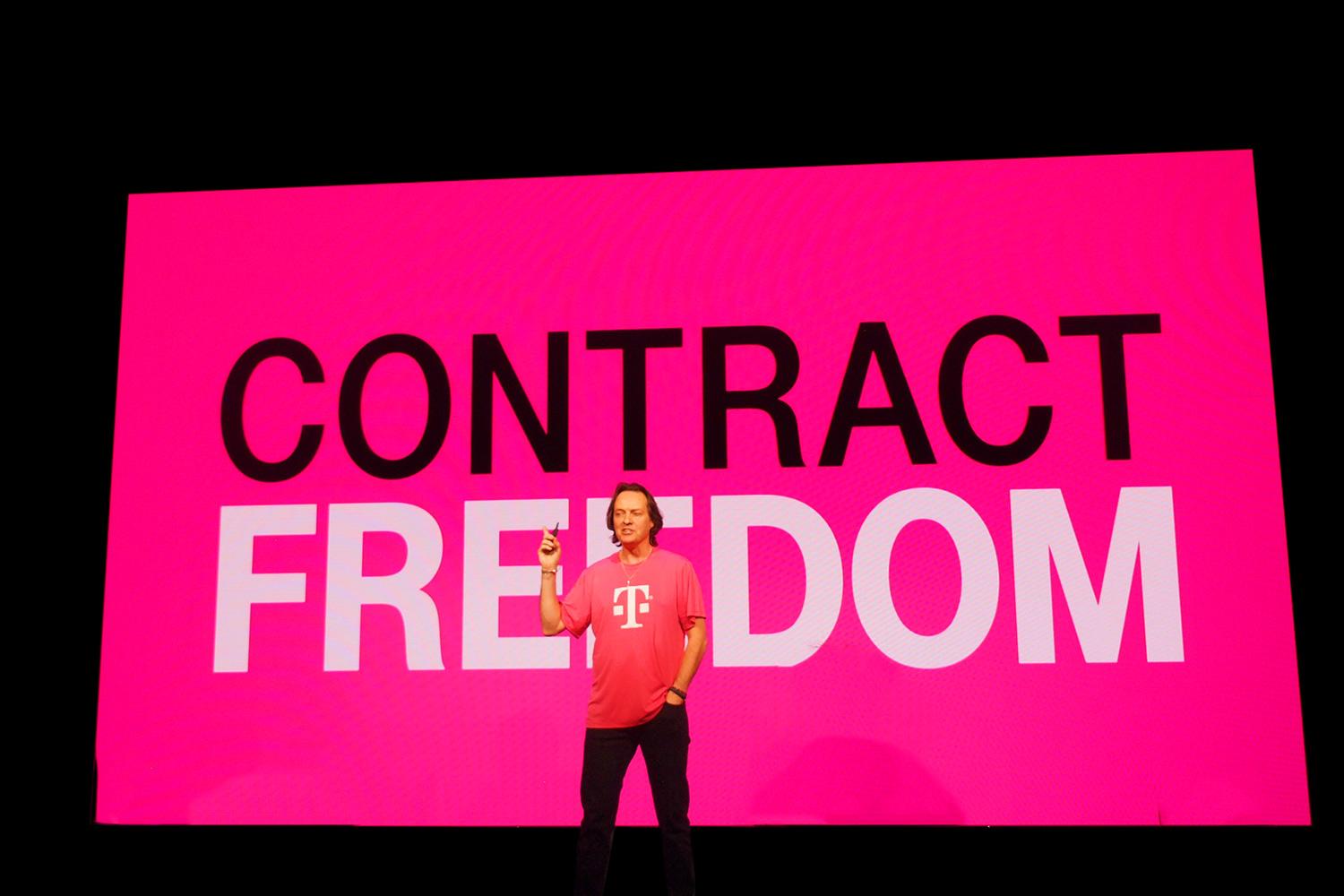
When CEO John Legere joined T-Mobile a year ago, he had a problem: T-Mobile was a distant fourth-place carrier in an industry built to prevent people from switching carriers. Most CEOs would just hire another, younger, prettier T-Mobile girl and cross their fingers. Instead, Legere started knocking down walls. Through a series of calculated announcements, he's trying to upend the entire wireless industry and position T-Mobile on top when the dust settles. And lucky for you, consumers will end up on top too, whether they join T-Mobile or not.
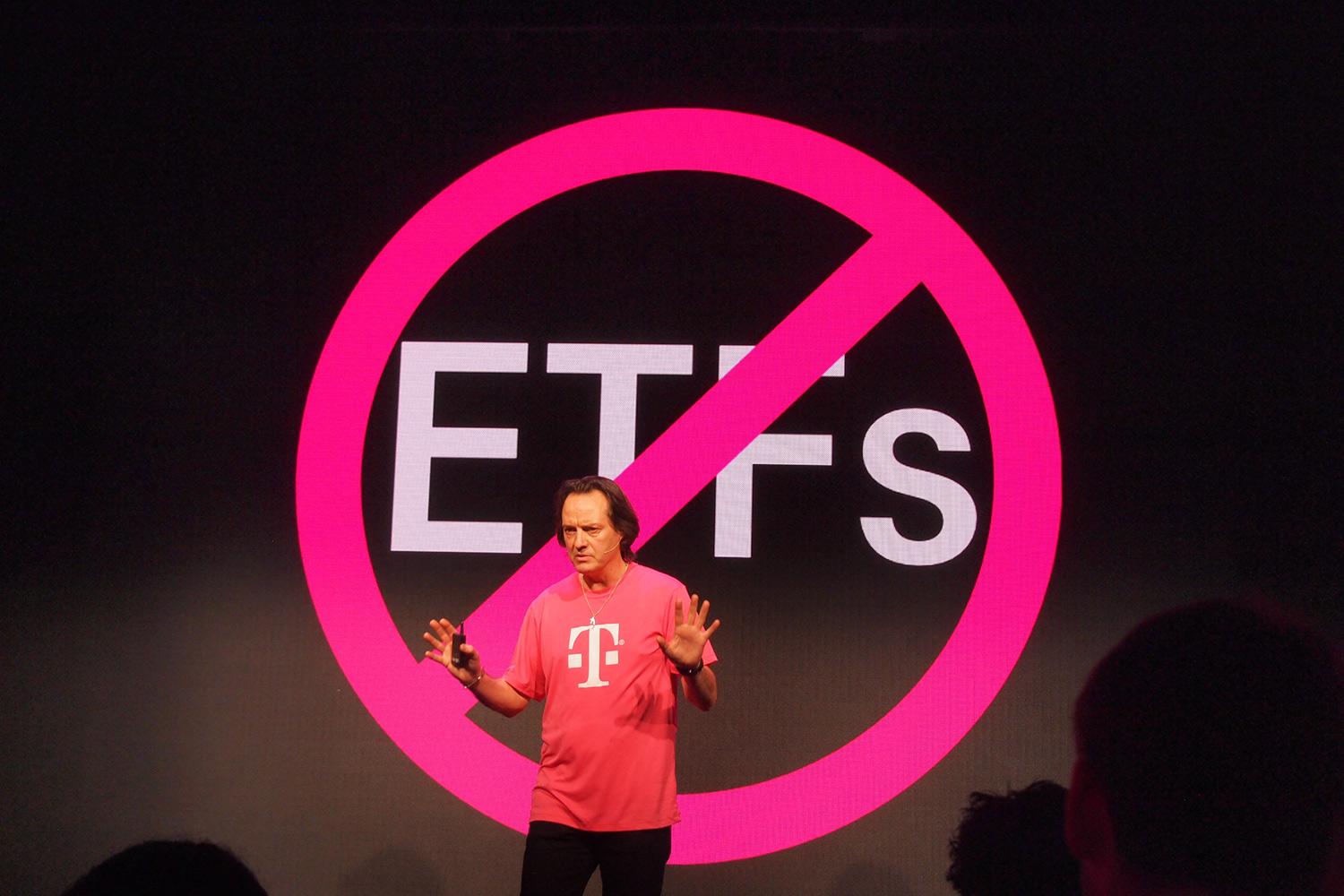
Here's how it works: When you switch from another carrier, T-Mobile will pay up to $350 of your early termination fee, and give you up to $300 for your old phone. Legere believes this will force all carriers to end contracts and ETFs for good.
If the bleeding continues, policies will only get fairer and subscriptions cheaper.
"This isn't an offer; this is a lifestyle," Legere announced in his typically bombastic fashion. "We will never have contracts … We are either going to take over this whole industry, or these bastards will change and we'll still be wildly successful. I'm going to love watching the peckers scream."
T-Mobile's first big Uncarrier move was axing the subsidy most carriers put on phones. When AT&T sells you a$650 iPhone for only $200, they're rolling the real cost of the phone into your monthly service fee. If you break your two-year contract and leave early, they don't get their money back, hence the early termination fees. On T-Mobile, you can pay the full cost of the phone up front, or spread the cost across many months. You get a choice, and it's far more transparent.
The brilliance of Legere's plan is that if he succeeds, we all win. A completely contractless wireless industry is a boon for consumers, far beyond merely being able to change carriers on a whim. Here's why.
Carriers will be in real competition
In a future where carriers will "pay out" each others' early termination fees to win customers, those fees will eventually disappear altogether. At that point customers will be able to leave a carrier painlessly whenever they're dissatisfied. This means that if carriers don't come up with more consumer-friendly policies, promotions, and service improvements, big guys like Verizon and AT&T stand to lose millions of customers. Even with ETFs, T-Mobile is the fastest growing carrier in the United States now. Throughout 2013, T-Mobile added more customers than anyone else: 4.4 million subscribers.
Those customers didn't appear out of thin air. Most of them likely left AT&T, Sprint, and Verizon. These carriers have already reacted by offering some half-assed contractless options, and if the bleeding continues, policies will only get fairer and subscriptions cheaper. Faster, better service for less money. This is what the fear of losing customers, or real competition – shepherded by no ETFs – will bring.
Carriers may stop trying to limit and sell phones
Without early termination fees and contracts, carriers may also stop holding our phones hostage. Currently, for a phone to make any impact in the U.S., it has to go through a long and expensive appeasement process. Before American carriers will officially offer a model of phone, they force manufacturers to add tons of apps and services, create exclusive models specifically for their carrier, and fiddle with the appearance.
Even T-Mobile is still guilty of requiring custom phones. The Sony Xperia Z1S is a slightly modified version of the Xperia Z1. It has a new camera app feature, more memory, and T-Mobile asked Sonyto move the location of the headphone jack by an inch.
The consequences are more expensive phones (the cost of the tweaks gets worked into the cost of the phone) and more consumer confusion. For instance, Nokia's Lumia 920, 925, and 928 are all essentially the same phone, but you can only get the 920 on AT&T, the 928 on Verizon, and the 925 on T-Mobile (and now some other carriers). Which one do you want? Thanks to the fractured U.S. carrier system, you probably have no choice.
Carriers may also stop holding our phones hostage.
Recent moves by the U.S. government now allow customers to unlock their phones and take them to other carriers (we own them, after all). In a world where customers can freely switch carriers, more phones would work across multiple carriers, and be sold more like every other electronic good.
Because they would have to compete for customers, AT&T and other carriers would be incentivized to open up their networks to let you use phones from other carriers. Thanks to the growth of LTE, which has been almost universally adopted across networks, all phones can be compatible with all carriers fairly easily. If you buy an iPhone to use on Verizon, you should be able to use it on T-Mobile, AT&T and Sprint, too.
Because they would have to compete for customers, AT&T and other carriers would be incentivized to open up their networks to let you use phones from other carriers. Thanks to the growth of LTE, which has been almost universally adopted across networks, all phones can be compatible with all carriers fairly easily. If you buy an iPhone to use on Verizon, you should be able to use it on T-Mobile, AT&T and Sprint, too.
Carriers could still sell phones (lots of them) in their stores, but they wouldn't need to be branded, stuffed with garbage apps and reconfigured. Remember how carriers used to offer their own app stores inside flip phones? The success of Apple's App Store ended that, and now iPhone owners on all networks now have access to the same apps. We're better off with an AppleApp Store rather than an AT&T app store, and hardware is heading the same direction.
Times are a changin'
"What we're going to do is force the industry to change … I want every customer [to be able to switch]," said Legere. He claims 40 percent of families say they would move if someone paid their termination fees, and 70 percent of individual customers.
If he's right, then T-Mobile's new plan to pay every other carrier's early termination fees and give customers the ability to trade in phones for cash may change everything – not overnight, but in the years to come.
With more competition, consumers win. For an industry that has spent more than a decade doing its best to screw customers over and bleed us for money, its exciting to see things moving in a positive direction.
If anyone is looking for some additional online storage (i.e. Dropbox), send me an email and I'll hook you up right away. I have one service that is currently doing a promo where any new member gets 6GB if I refer them, and another one that is still doing a whopping 15GB for new users plus an additional 5GB if I refer you. Both of these are free, and just require you to sign up for an account (obviously) and then install the desktop client on your home computer. Both provide real-time sync'ing with your computer, both are easy to install and use, and both have accompanying smartphone apps. This way you get not only a free backup system for your most important files/pictures/videos, but you also have access to all of your stuff on the go from your phone and/or tablet. Most tech companies and products nowadays are targeting cloud solutions for precisely these reasons, so if you don't yet have this rolling -- or if you just have the measly standard 2GB from Dropbox -- let me know and I'll get you started.
Why am I mentioning this? Two reasons.
First, it's the 21st century, and everyone who has any kind of viable presence online and a smartphone really should have something like this in place. I hate to see people go through loads of pain and hassle when things go south with their computer, especially when it could have been avoided. Trust me when I tell you that using online storage services like this can save you a monster headache if your home computer is lost or stolen (or the hard drive crashes), and it can also save your bacon in the event that you need access to your stuff while you're away from home (being in school right now, homework assignments come readily to my mind, but work presentations and documents also fit here). You get all that benefit, and it's free, easy, and convenient. Don't worry about security, either - both of these services are reputable, and I trust them with my own stuff. The big services like these now have very good encryption in place, so you are as safe as you can be without going completely offline.
Second, most of these online storage companies know that they have one chance to quickly build a user base, and that's when they're early in their life cycle. So, when they first come out they often try to make a splash and generate buzz by giving away lots of extra storage space for free, not only for new users but also for new users via referrals from existing users - in most cases, both the new user and the existing user get extra space once the new user is installed and running. I've snagged over 120GB of free online storage this way over the past 12-18 months, which is equivalent to at least $120 a year and a whole lot of assurance that our stuff is both secured and available. By getting started with a referral like I'm proposing is a great way to not only put in place some key benefits for yourself, but also to maximize those benefits.
So, if you're reading this and hearing a little voice in your head that says, "Yeah, I really should do this..." then send me an email to let me know you want in. I'll send you the invites from my accounts, and I'll even help you walk through the process of setting everything up if you need it. Once you're installed and running, the extra space will magically appear on your online account, and you're off to the races!
When it comes to figuring out new technology and getting help with that new technology, most of us fall into one easily definable category or another. This is an oldie but a tremendous goodie...
The funny thing is, it's always been that way, no matter the time period...
Being a member of the IT help desk team should get you some serious extra credit toward sainthood, I think.
Rovio continues to milk the Angry Birds
franchise for every thing it's worth, and coming this September the
latest -- Angry Birds Star Wars II -- will be launching on app stores
worldwide. This time though, there's a new piece of merchandising that
fans of the series, as well as Star Wars fans, are going to be excited
about.
They're called TELEPODS, and they bring more to the table than your
typical plushie or keychain figurine. As you can see in the video after
the break, they are action figures of your favorite Angry Birds Star Wars
characters, that can be imported right into the game. Place the base of
the figure on your phone or tablets camera and they're instantly
available as a playable character.
Also new is the ability to choose your faction, and you can play as
part of the good or evil side -- or "Pork Side" as Rovio puts it. All in
all, this latest looks to breathe new life into the most popular mobile gaming series of all time. We'll give it a good long look this coming September.
You know I love Star Wars, but I also enjoy me some Angry Birds, so this is a natural win for me. Even more importantly, the tie-ins with the little physical toys is actually a really slick idea that I believe was pioneered by the Skylanders game series. It's a marketing model that makes a whole lot of sense and has the potential to tie together a lot of platforms in a way that would make it far easier and more convenient to be a consumer. I know Disney is working with the Skylanders platform and will be coming out with something related soon, and with Rovio jumping on the bandwagon I think we'll start seeing a lot more of this in the months to come. Regardless, I'm looking forward to it!
In the spring of 1981, David Bradley was part of a select team
working from a nondescript office building in Boca Raton, Fla. His task:
to help build IBM’s new personal computer. Because Apple and RadioShack
were already selling small stand-alone computers, the project (code
name: Acorn) was a rush job. Instead of the typical three- to five-year
turnaround, Acorn had to be completed in a single year.
One of the programmers’ pet peeves was that whenever the computer
encountered a coding glitch, they had to manually restart the entire
system. Turning the machine back on automatically initiated a series of
memory tests, which stole valuable time. “Some days, you’d be rebooting
every five minutes as you searched for the problem,” Bradley says. The
tedious tests made the coders want to pull their hair out.
So Bradley created a keyboard shortcut that triggered a system reset
without the memory tests. He never dreamed that the simple fix would
make him a programming hero, someone who’d someday be hounded to
autograph keyboards at conferences. And he didn’t foresee the command
becoming such an integral part of the user experience.
Bradley joined IBM as a programmer in 1975. By 1978, he was working
on the Datamaster, the company’s early, flawed attempt at a PC. It was
an exciting time—computers were starting to become more accessible, and
Bradley had a chance to help popularize them.
In September 1980, he became the 12th of 12 engineers picked to work
on Acorn. The close-knit team was whisked away from IBM’s New York
headquarters. “We had very little interference,” Bradley says. “We got
to do the design essentially starting with a blank sheet of paper.”
Bradley worked on everything from writing input/output programs to
troubleshooting wire-wrap boards. Five months into the project, he
created ctrl+alt+del. The task was just another item to tick off his
to-do list. “It was five minutes, 10 minutes of activity, and then I
moved on to the next of the 100 things that needed to get done,” he
says. Bradley chose the keys by location—with the del key across the
keyboard from the other two, it seemed unlikely that all three would be
accidentally pressed at the same time. Bradley never intended to make
the shortcut available to customers, nor did he expect it to enter the
pop lexicon. It was meant for him and his fellow coders, for whom every
second counted.
The team managed to finish Acorn on schedule. In the fall of 1981,
the IBM PC hit shelves—a homely gray box beneath a monitor that spit out
green lines of type. Marketing experts predicted that the company would
sell a modest 241,683 units in the first five years; company execs
thought that estimate was too optimistic. They were all wrong. IBM PC
sales would reach into the millions, with people of all ages using the
machines to play games, edit documents, and crunch numbers. Computing
would never be the same.
And yet, few of these consumers were aware of Bradley’s shortcut
quietly lingering in their machines. It wasn’t until the early 1990s,
when Microsoft’s Windows took off, that the shortcut came to prominence.
As PCs all over the country crashed and the infamous “blue screen of
death” plagued Windows users, a quick fix spread from friend to friend:
ctrl+alt+del. Suddenly, Bradley’s little code was a big deal.
Journalists hailed “the three-finger salute” as a saving grace for PC
owners—a population that kept growing.
In 2001, hundreds of people packed into the San Jose Tech Museum of
Innovation to commemorate the 20th anniversary of the IBM PC. In two
decades, the company had moved more than 500 million PCs worldwide.
After dinner, industry luminaries, including Microsoft chairman Bill
Gates, sat down for a panel discussion. But the first question didn’t go
to Gates; it went to David Bradley. The programmer, who has always been
surprised by how popular those five minutes spent creating ctrl+alt+del
made him, was quick to deflect the glory.
“I have to share the credit,” Bradley joked. “I may have invented it, but I think Bill made it famous.”
It's stuff like this that makes me seriously question the fact that we "can't" take out anyone in the world if we really wanted to. I'm pretty sure that if this thing is publicly known (with its own promo video), then it's at least one generation back, so can you imagine the capabilities of the latest and greatest? What third world terrorist is going to be able to protect himself from a precision-guided projectile that can travel 60+ miles to nail a specific vehicle or a particular section of a building? No chance.
Seems to me that the question is much more along the lines of whether or not we have the will to take people out than the means...but that's a whole different topic. Anyway, be in awe...
I actually like Microsoft Windows. It provides a reasonably intuitive interface so that non-techies can harness the incredible -- and ever-increasing -- power of a computer, which is probably the most useful productivity tool in the world today. Everyone knows the software empire that is Microsoft, and Windows has been the flagship product driving its success for years. But boy, how things change...
True, on the desktop, Windows 7 still ranks as the top operating system with 44.85-percent of all PC users, followed by the still popular Windows XP with 37.74-percent. Vista—yes the never-loved Vista—comes in at third with 4.51 percent. Despite the fact that finding and buying Windows 7 PCs has become increasingly more expensive and difficult, just try finding one in a retail store, Windows 8 share is growing but still comes in last at 4.27 percent.
Let's dissect this info a little bit. Personally, I would disagree with a couple things here.
I don't think that smartphones and tablets should be considered in the same class of computing device as desktops and notebooks. They've come a long way over the past 3-5 years, yes, but they're not fully capable replacements (yet). They lack the sheer computing power, the upgradeability, and the vast array of connectivity that is essential for functioning in today's office environment. They're terrific peripheral devices that allow easy portable access to everything you could need on your main system...which is still a desktop or laptop. Every few months a new tech blogger tries to use only a smartphone or tablet to do his job for a period of time, and documents the experience. Invariably, they figure out a way to brute force their way through with a mish-mashed amalgamation of products and services, but that sort of experiment is really not possible in a corporate environment with thousands of users and a finite IT support staff. Aside from the problematic hurdles in simply getting everything working, there's still the question of full functionality. When there's a tablet that has 1TB of storage space and is capable of driving the graphics for dual monitors, as well as allowing a user to perform a memory upgrade in less than 2 minutes, then we'll talk about being in the same space as a desktop or laptop. Until then, I think they should be considered separate technology segments.
That being said, I think this article still paints a pretty dismal picture for Windows. Not only has the adoption rate been abysmal, but it's actually getting worse as time goes on. I'll let you read the whole article for the full scoop, but the bottom line is that Windows 8 has been rejected by pretty much everyone. Microsoft fanboys (yes, they do exist) will boldly proclaim that Microsoft has sold well over 60 million licenses, blah blah blah. That's an argument that is as simplistic as it is irrelevant. I know my company has purchased thousands of licenses from Microsoft that allow the installation of Win8...or Win7. I can assure you they're not installing Win8. Not only is the ridiculous UI change going to be a support nightmare -- "Where's the Start button?!" "Where did my programs go??" "How do I print??" -- but it hasn't been all that long since we finished rolling out Win7, and there's no way they're moving on anytime soon. But they still have to be prepared for the future from a licensing perspective. I'm guessing most large corporations are following much the same pattern - buying licenses all the time, but not actually using them until it's beneficial (or necessary, as in the exit of Windows XP). The number of licenses sold is an empty shell of an argument. You could also look at it this way - how many people do you know who are using Win8? I can think of only one, but that's on a tablet rather than a "real" computer.
And that brings us to another argument. Win8 is supposedly a really good experience on touch screens. Emphasis on the supposedly. If it really was for most people, then Windows 8 smartphones and tablets would be going like gangbusters. Instead, the pathetic adoption rate of desktops and laptops actually towers above the adoption rate of smartphones and tablets. And there's still the nagging little problem of having to replace tens of millions of monitors on the desk of every corporate environment and home office in order to take advantage of it, and that is not a cheap or fast process. The idea of a unifying platform for all devices is certainly good (and we'll probably get there eventually), but it's not there yet, as the Windows experiment demonstrates in spades.
Also, did I mention the customer experience disaster that is Windows 8? Just go look on YouTube and you'll find more videos documenting how horrible Win8 is than you can shake a memory stick at. It's counter-intuitive in many respects, and the interface is even worse than that of iOS. Sure, there are a handful of people who love it...but most don't. Like iOS, there's little customization that can be done to it, but iOS is far more polished in terms of a slick-looking and seamless visualization, so without customization all you have is a bunch of solid colored blocks cluttering up your screen. What's that about real-time updates? Big deal. Android has these things called widgets that give you real-time information in a vast array of configurable and customizable tools that give you everything you could possibly imagine, but in a theme and/or design that looks damn good and fits with the smartphone environment of your choice. Win8 falls short again. In fact, several hardware manufacturers have publicly blamed Win8 for the roughly 14% decline of PC sales over the past year, though the changing nature of what exactly constitutes a "PC" does obscure the field quite a bit. Regardless, Win8 is clearly a loser in terms of market success. There's been some recent signs of hope with the 8.1 upgrade, but even that is too little too late, I think.
So here's my take on what's going on.
Touchscreens are where the industry is going, and the blending of "PC" and "tablet" is only going to continue. Microsoft is right about going for a single unifying experience, they just did an atrocious job of it on their first attempt. But let's be honest - any time you have that radical a change to something people use daily, it's going to cause some waves, especially with users who don't understand the difference between a hard drive and the tower, or who can't figure out when their monitor is simply turned off. That's different than what Win8 has done, though - it's frustrating and annoying savvy, technically proficient power users, leading me to believe that any realistic chance of rolling out to the mass public or corporate America is slim to none because of the literal nightmare that would ensue for IT departments everywhere. This is not unprecedented, though. Vista was such a terrible release that almost no one actually used it in the corporate space, and people got away from it as quickly as they could in the consumer space. It is not normal for a desktop operating system to be supported for 15+ years, but the mass rejection of Vista is what prompted XP to have such a long and successful run. If you look at Microsoft's history, you see a pattern developing:
Win 3.1 - great
Win95 - decent
Win98 - great
Millennium - awful
XP - great
Vista - awful
Win7 - great
Win8 - awful
I can't imagine it's intentional, but it sure seems like they alternate between great success and great failure. Does it just take that long to really build all the necessary features into a release and get them working properly? Do they not pay enough attention to their user base until too late in their development process? Do they want to let their good releases linger for as long as possible in order to really lock up the segment? Something else? I have no idea, but this is the pattern we see. So, in the context of Win8, here's what I think happened.
Microsoft knows the industry trend is toward touchscreens. They know they have a lock on the desktop/laptop OS segment. They know that a unified environment will eventually be the ace in the hole (think about how both Apple and Google have worked long and hard to create an ecosystem where all your content is provided by one unified platform for all your services). They know Win7 is highly regarded, and they're due for another clunker release. They know the number of touchscreens in both the consumer and commercial space is vanishingly small. In short, they can't possibly succeed right now with Win8. Thus, I think they're positioning themselves for Win9, and threw Win8 to the wolves from day one.
And really, it's not that bad an idea. What better beta test can they run than actually releasing it and getting real feedback from real customers over the course of several years? They're still making a ton of money off of it from those purchased licenses, and they already own the only viable alternative (Win7) if people don't like it. Where's the down side? Some negative press, sure, but Microsoft is hardly a stranger to negative press, and raking in billions of dollars a year is a pretty soothing balm for negative press. In reality, they've just bought themselves a few more years to really refine and develop the unified Windows platform into something that will be polished, comprehensive, and an ecosystem capable of going toe to toe with Apple and Google. They have a ton of work to do to get there, of course, but that's the only thing that makes sense to me.
Oh yes, oh yes, oh yes!!! I'm not in the market, of course, but these look fantastic:
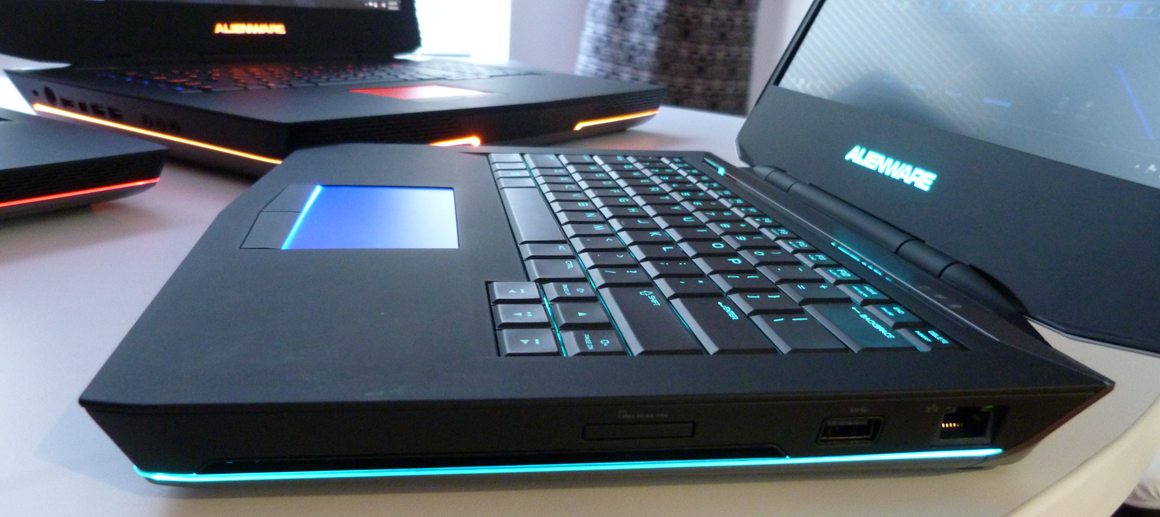
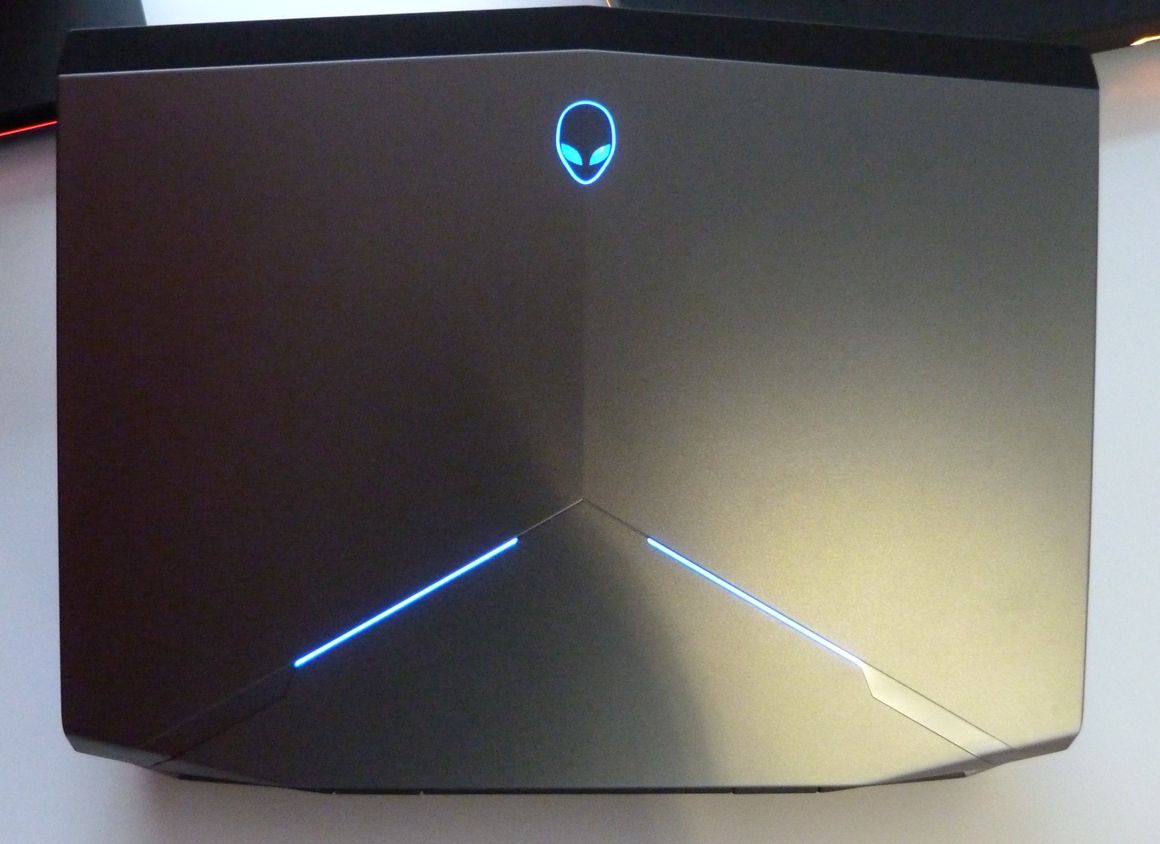
If there’s one thing Dell has done right over the years, it’s been to let Alienware—the boutique gaming PC manufacturer Dell acquired in 2006—remain Alienware. Based on the new notebook lineup that Alienware unveiled tonight, that let-‘em-be strategy is still working.
As the annual gaming/marketing orgy known as the E3 Expo
gets underway, the company announced three brand-new notebook models
based on Intel’s fourth-generation Core processors. But Alienware
General Manager Frank Azor dropped by PCWorld’s offices late last month
to give us a hands-on sneak peek. The lineup has undergone a significant
makeover while managing to remain unmistakably Alienware.
"It’ s a big departure from 2009,” said Azor. “The new models are 60
percent metal, including a 100-percent aluminum A panel [lid] and a
magnesium alloy chassis.” The reduction in plastic composites is a
welcome departure, but the most significant visual cues come in the form
of LED light pipes gracing the lid and the front and sides of the body,
and the backlit trackpad.
Between those, the alien-head logo, and the backlit keyboard, each
notebook has 10 distinct lighting zones that can be lit in any
combination of colors from a palette of 20. Games that support the
AlienFX utility can change these color combos in response to in-game
events, such as taking damage, healing, or completing a mission or
quest.
Here are a few more things that set Alienware apart from most other brands:
Alienware allows its customers to open up and upgrade their notebook,
and they can overclock the CPU—both without fear of violating the
manufacturer’s warranty. ...
Azor said that people often ask why Alienware’s notebooks are so thick.
“It’s because we don’t share performance among components,” he said.
“Every part can run at its full TDP (thermal design power). A lot of
manufacturers will throttle down the GPU when the CPU ramps up, and vice
versa, thinking only one component needs to run full out at once. Our
notebooks can run everything full tilt without anything needing to back
off.”
... the 17- and 18-inch notebooks also have an HDMI input,
so you can connect a game console or a smartphone and use the
notebook’s larger display. ...
All three models will also come with a new dynamic performance
optimizer—dubbed Accelerator—that can turn off Windows services that
aren’t essential to gameplay, freeing up system resources for the game.
Once you exit the game, Accelerator automatically turns these services
back on. ...
I won't go into the details of the specs on these beasties, but you can hit the link for all the gorgeous details. Let's just leave it at these beautiful pictures...
When I was growing up, my parents would tell me about all the ancient
technologies they had to use in their youth. Whether it was a car with a
manual choke, a phone that required you to ask an operator to connect
you, or a record player with a hand crank, mom and dad experienced a ton
of tech frustrations I would never know.
As my 1-year-old
upgrades his speech capability, I expect to tell him about these 10
awesome tech frustrations that he'll never experience. I hope he feels
sorry for me, at least a little bit. ...
Glacially Slow Dial-Up Internet
I've
been using cable Internet since 1999, but I'll never forget the
excitement of dial-up Internet. Barring a broadband apocalypse, my son
will be able to count on boringly consistent connectivity throughout his
life. Dial- up was like a box of chocolates; you never knew what you
were going to get.
Listening to the modem dial was like watching a
croupier spin the roulette wheel. I'd hold my breath as it punched the
final number. Would I get a busy signal, or would it just keep ringing
until I hit the cancel button and tried again? Even when my ISP's modem
picked up, I was on pins and needles for at least 30 seconds while I
heard the familiar "boing, boing, bing" of its handshaking process. In
the end, I could come out a winner with a speedy 56K connection or take
the penny prize with a 14.4 Kbps rate that took 10 minutes to download a
single photo.
Flimsy Floppy Disks
These
days, you have to work pretty hard to lose your work. Everything my son
writes, from his first scribbles to his college term papers, will be
preserved in the cloud for his great- grandchildren to see.
When I
was growing up, we had flimsy 5.25-inch floppy disks to save our data.
Unlike today's flash drives that survive 30 minutes under water, these
fallible floppies could fall victim to magnets, heat or even overuse.
Even better, it took a good very long time to save a document, making
you less likely to write to disk while you worked.
Germ-Ridden Pay Phones
Throughout
his life, my son will never be out of pocket, because he'll always have
a phone or some communication device with him. However, when I was
growing up, the only way to reach out and touch someone from the road
was to use a payphone.
These days, you'll have an easier time
finding a drive-in movie theater than a working payphone — and for good
reason. The ear pieces on these contagion kiosks were about as sanitary
as a public toilet seat that hadn't been cleaned in years. Even worse, I
never had the right amount of change, so I had to use a pricey calling
card. Remember those?
Ambiguous Pager Messages
By
the time my son is in kindergarten, he'll probably be wearing a headset
that beams full emails into his retina while he walks around. But his
father was excited to get an alpha numeric pager that buzzed with a
caller's phone number.
Unfortunately, when you received a page,
you often didn't know whose number it was and what that person wanted
until you returned the call. I can't tell you how many times I ran to
the nearest payphone just to call back telemarketers or strangers who
paged the wrong number.
Renting and Rewinding a VHS Tape
When
I sit down on the couch with my son and show him all my favorite
movies, they'll be streaming from the cloud right to our tablet or TV.
So he'll spray milk from his nose when I tell him about how we used to
rent VHS tapes from a store.
When you think about it, every
single aspect of the video- rental process was an exercise in
frustration. First, you had to drive to the store and hope it still had
available copies of the movie you wanted, but more often than not, you'd
come for "Pearl Harbor" and settle for "Pootie Tang." You then had 24
hours to watch the film and bring it back fully rewound or risk painful
penalties. I'll never forget standing in front of my VCR rooting for it
to rewind the tape more quickly so I could speed out to Blockbuster in
an ice storm and get it there by 11:59 p.m.
Dot Matrix Printing
If
and when my son actually needs to output something to paper, the inkjet
will print it in full color on a glossy piece of paper within a minute
or so. If he needs more paper, he'll just load regular 8.5- x 11-inch
pages into a tray and be done.
He'll never have the same sense of
satisfaction I experienced after finally aligning the holes on my ream
of paper with the sprockets on my dot matrix printer and waiting 20
minutes for it to print 10 pages of black-and-white text. The printing
process was so slow and painful that teenage girls could use "I need to
print tonight" as an excuse to get out of a date instead of classics
like "I need to dry my hair" or "something suddenly came up."
Writing in Palm Graffiti
Today's
best software is like a pair of comfortable shoes; it adapts to the
user's existing preferences over time. My son's first computer, phone
and tablet will undoubtedly learn from him, predicting the next word
he'll type or song he'll listen to, based on his previous activity.
Growing
up in a world where personalization is king, my kid will be surprised
to hear that there was once a device that forced you to learn an
entirely new alphabet just to enter text. An entire generation of PalmOS
PDAs required you to write in Graffiti, a synthetic alphabet that was
designed to make it easy for the device to read your scribbles.
Dithered Web Graphics
If
my son sees a picture that has a limited color pallette, it'll be on
Instagram. Back when the Web was new, however, a lot of video cards and
color monitors could show only 256 different colors (8-bit color) on
screen at once.
With 8-bit color, photos appeared grainy because
the computer had to use dithering technology to approximate more colors
than it could actually show at once. Even the desktop wallpaper and
icons in Windows looked pixilated when used in 8-bit color mode. When I
finally got a 16-bit video card, the entire Internet looked different.
Adjusting the Rabbit Ears on Your TV
Whether
it's a streaming video from the Internet or an HD channel on cable TV,
the videos my son watches all appear at the press of a button. On the
rare occasion that he has to wait for buffering or the picture freezes,
there's not a lot anyone can do about it.
When I tell him that I
grew up poking and prodding the rabbit-ear antennas on top of the TV
just to get a decent picture, he'll throw his sippy cup across the room.
Unfortunately, for decades before cable and digital TV, everyone had to
get up from the couch and periodically fiddle with the TV antennas,
because the picture would suddenly get wonky. A whole generation of
children were charged with this task.
Developing a Photo
If
my son wants to take a picture of something, all he needs to do is
point his smartphone, tablet, digital camera or webcam at the object and
click a button. In about a second, he'll have a completed digital image
he can edit, print or share with the world.
When his dad was
growing up, most pictures were taken on film cameras with two dozen
shots per roll and no ability to see them until they were developed.
Sometimes, it would be weeks or months before you finished a roll and
had it developed. Even Polaroid pictures took several minutes to appear.
By that time, if someone had red eye or was looking away in a shot, it
was too late to capture another image.
No, I'm not actually talking about Microsoft being targeted again. Quite the opposite, in fact:
A 17-member coalition of competitor-companies including Microsoft, Nokia, Oracle, TripAdvisor and Expedia have united under the Fairsearch.org initiative to sue Google for that it “uses deceptive conduct to lockout competition in mobile.”
The coalition accuses the search company of using the free Android as a vessel to promote its search and other services (like YouTube) and lock users into them.
“Google is using its Android mobile operating system as a ‘Trojan Horse’ to deceive partners, monopolize the mobile marketplace, and control consumer data,” the coalition’s lawyer Thomas Vinje said. “We are asking the Commission to move quickly and decisively to protect competition and innovation in this critical market.”
Over Christmas break one of my relatives who had just purchased the new Samsung Galaxy S III beast phone asked me point-blank: "What apps should I get for this thing?" He indicated that he used it primarily as an actual phone (what?!) and was thus -- perhaps not surprisingly -- unimpressed with this latest/greatest Android device. Upon further reflection, I think that's actually a great question that fortunately has a simple answer: "What do you use your phone for?" That's really what it's all about. If you just want a phone to make phone calls, don't bother with a smartphone and data plan. It's overkill and a waste of your money. If you want phone calls plus basic email and Internet browsing, it's still pretty simple, and the default apps that come on most smartphones will suffice. But, if you want to really get your money's worth out of your smartphone, there's a whole world of apps just waiting for you to go get them. I'm a tinkerer and I play a lot with apps, settings and features just for fun, so hopefully some of my experience can be helpful to you, especially if you're one of those who is wondering what apps you should get for this fancy (expensive) gadget you own. Remember the commercial that established the phrase "there's an app for that?" Honestly, no matter what you're trying to accomplish with your phone, there probably is an app to do it. Last I knew, the Apple App Store had something like 700,000 apps in it and Google Play (the Android app store) had around 650,000. That's not even counting the Amazon App Store, the Windows Phone app store, or any of the other smaller independent ones like Getjar. But none of those are any good to you unless you know what you want to do, so that's the first question you need to answer. Everything else falls into place pretty quickly after that. Don't know what your phone is even capable of? Well, it can do pretty much everything that a normal computer can do...just on a smaller screen, and with much better mobility. Not everything, of course, but most of it. So, think big, and poke around and figure out what you want. As a starting point, here are some of the apps I've got on my phone and/or Kindle Fire (or have used in the past), a quick description about them, and a link to their location in the Google Play store (this post assumes a basic level of knowledge on how to get apps from the app store and install them). You'll notice some potentially confusing terminology about an "app" and a "widget." The functional difference between them is pretty huge even if they may not look much different. Think of an app as a static application like Microsoft Word. When you need it, you explicitly start it, do what you need to do, and close it. In contrast, a widget is like a window into real-time information that keeps updating all the time. It installs like an app, looks like an app, and largely functions like an app, but it's designed more to be a live information pass-through than a standalone app. It doesn't shut down. The only real potential downside is performance - the more widgets you use, the more potential you have for bogging down your phone (after all, these are all real-time updates that don't shut down!). Just keep adding them until you notice things slowing down, and you'll know how much your particular phone can handle. Oh, one more thing - Android uses some really nice cost models. Most Android apps use either an ad-supported model where you get the app for free (but have to look at ads for other products/services while you use them) or the "freemium" model, which basically means that you can use a limited version for free but have to pay to get the full features and functionality. Both work well because the free versions provide most of the functionality that most users need, and the hardcore users who need the full version are happy to pay for it. It doesn't hurt that most Android apps are only $3-4 (many are less), far less expensive than most Apple apps. I've purchased the full versions of a couple apps for just a buck or two simply to show appreciation to the developers for their free versions, and that's not uncommon in the open source world. In some cases, developers will offer extra goodies (backgrounds or themes, etc.) that aren't essential to the app's functionality in return for payment. Either way, everyone wins. Now, on to the apps...and remember, this is merely a starting point!
Launchers Launchers are essentially the heart and soul of your smartphone. When you turn on the screen, the launcher is what creates the actual arrangement of your screens and provides the basic functionality of how your phone interacts with you. Some are designed to be fast and simple, some emphasize customization, some have tons of bells and whistles. It's a total preference thing, so the best idea is to try several and then pick the one that works best for you.
Go Launcher EX - one of (if notthe) biggest and best launchers on the market today; the cool thing about Go is that they have created an entire ecosystem around it - you can download add-ons for widgets, weather, contacts, themes, and other things that all integrate seamlessly (think Microsoft Office rather than Microsoft Word); the launcher itself provides incredible customization for making your phoneyourphone.
Nova - Very close to the functionality and customization of Go, but with better performance.
Apex, ADW.Launcher, and LauncherPro are generally well regarded, too, and there are plenty of others out there that I haven't tried.
Internet Browser Let's be honest - one of the big reasons to have a smartphone is to have access to data and the Internet on the go. The choice of browser is pretty big. First off, if you're talking about Android, the stock (i.e. built in) one really isn't bad. Give it a try first and see what you think, then check these out:
Chrome - This is the little brother of the desktop browser, and just as slick; the best part about this is that the built-in sync functionality allows you to access your bookmarks, passwords, and even open tabs from any of your devices. For example, if I'm reading an article on my home PC, I can go to work, open Chrome on my phone and pick up that same article later in the day. The only downside is that it's only available for Android 4.0+ devices, so if you have an older phone and don't see it in Google Play, that's why.
Firefox - This is another great browser (also the little brother version of the desktop browser), capable of tons of customization via plug-ins, and the same kind of sync'ing as Chrome.
Dolphin - This mobile-only browser is fast and good, with lots of customization. If you don't care about sync'ing with other (desktop) devices, this one might be the best out there.
Weather There are a lot of these. No, really, I mean a lot. Try lots, pick your favorite, and go with it.
1Weather - This one has a very clean, very simple interface. It has my favorite weather widget (see red circle in picture below) because it packs a whole lot of info in a small but useful space. A lot more details are available if you actually open up the app itself, including long-range forecasts, alerts, radar, and so on.
Notification Weather - This is a really slick one I just found that actually sits like a widget in your notification area. Another very clean and simple interface, I'm looking to play with it some more. (I'm not 100% certain, but I think it's only available on Jelly Bean devices which are so far few and between...)
Weather Channel - There are lots of channel- or brand-specific weather apps out there (i.e. Go Weather, Accuweather, Google Weather, etc.), but for an intuitive interface and useful features, I like this one best.
Weather/Clock/Homescreen Widgets There are several great apps that allow you to create widgets for your homescreen that include some combination of clocks, weather updates, the date/time, and other info in a way that many people use as a full homescreen. I'm certain there are more than the ones I've listed below, but I've had good luck with all of these. The green circle above shows one example of HD Widgets (the one I happen to have installed right now), but there are an almost unlimited number of iterations and styles available. Don't get intimidated by these, it's almost as easy as point-and-tap to create them.
Beautiful Widgets - Probably the first big one to fulfill this niche, it has tons of customization and themes available.
Fancy Widgets - Essentially the same stuff as Beautiful Widgets, just not the first one.
Angry Birds (original, Seasons, Rio, Space, Star Wars) - need I say more? If you don't know these, just give them a try for some strangely addicting fun.
Bad Piggies - By the same company that created Angry Birds, this is a spin-off game using the same physics engine, but the idea here is to create vehicles that the pigs (the bad guys in Angry Birds) use to navigate through obstacle courses. This is still pretty cool, but eventually these get pretty tricky, and this isn't quite up to the level of AB.
Quell and Quell Reflect - A sedate strategy game with soothing music and impeccable graphics.
Robo Defense - Very shallow, very simple, very fun.
Netflix or QueueManager - Links to your Netflix account; the official app lets you watch stuff, but is surprisingly lacking when it comes to actually managing your queue...QueueManager, on the other hand, does a good job of that.
Reading
Amazon Kindle for Android - Read your Amazon ebooks on pretty much any device (Android, iPhone/iPad, desktop). The best part about this is that all of your books are sync'd to the same page so you never have to bother with keeping track of where you are; you can also add bookmarks or notes, and you can share excerpts with others directly from the app. Amazon did a bang-up job with this ecosystem.
Aldiko - The best non-Amazon reader app I've seen; good features, easy to use.
Bible - The biggest and best, though I've seen others (like MySword Bible) with far more tools and advanced features; this one has a verse of the day, devotions, and daily reading plans built in.
Tools/Utilities
CircleLauncher - This great little tool lets you create widgets to give you two-tap access to groups of specific contacts or apps. Below is a sample of both contacts and apps. One tap on the circle launcher brings up your list, then you just tap again to run the app (or place the call, or whatever). For contacts, if you have pictures set up then they'll show here; for an app list you see the app's native icon. There's a vertical or horizontal configuration available, but I prefer the circles.
Dropbox, Box, SugarSync - Everything is tied to the cloud nowadays, so having a firm understanding of how to access online services is essential. Think of these apps as online repositories where you can store documents, music, pictures...pretty much any computer file, really. It's all accessible as long as you have a connection (either cell service or wifi), and you can set up auto-syncing on your home computer so that files are transferred instantly between the two. For example, let's look at vacation pictures from a few years ago (not as far back as film rolls...just digital camera pics). What happened if you lost your camera on the trip home? Your pics were gone, period. Not so anymore. Let's say you take a priceless vacation picture with your phone, which subsequently gets dropped into the lake. The phone is gone, but your pictures were automatically uploaded to one of these services, which then sync'd them to your computer at home. Sure, you have to replace your phone, but you'll have those priceless pics sitting on your desktop when you get home. But what if your house burns down on the same day? You can still rest easy knowing that the digital picture is sitting safe and sound in the cloud, and all you need to do is log into your account from any other computer to get to them. Pretty slick, huh? It's also extremely easy to share pictures and files with others using these services. These are an absolute must-have for anyone using their phone as a multi-purpose device rather than just a phone.
Quickpic - An outstanding picture manager, much better than the standard gallery app.
Elixir - This is like a digital toolbox with a ton of informational and management functionality; also lots of great widgets for things like toggling wifi on/off, one-touch dialing shortcuts, etc.
Jot - If you need to jot down a quick thought or two for later, this is perfect.
AK Notepad - A great notepad app for writing/saving information; links to Catch.com to sync all of your notes to an online service so you can access them from your desktop computer.
Llama - Named for 'location aware mobile app', and it's just that - it monitors where you are and activates rules you create depending on your location. For example, I have mine set to automatically put my phone on vibrate when I get to work, and when I leave it turns full volume back on. The key difference here is that it uses cell towers to determine your location rather than the GPS, which is slightly less accurate but far less demanding on battery life.
FoxFi - Allows your phone to become a wifi hotspot (as long as you get cell service) that your wifi-only devices (i.e. iPad, Kindle, etc.) can use to connect on the go.
Alarm Clock Xtrme - I'm not sure what's so extreme about it, but I do know it's easy to use and gives you a variety of options for how you want to wake up, how you shut off the snooze, and so on.
Security
Lookout - The best mobile anti-virus and security app on the market, it includes remote location (and locking/wiping for the premium version), backup capability, and other features.
Prey - Another great remote location app if your phone ever gets lost/stolen.
SeekDroid - Yet another one (really, if your phone gets stolen, can you ever have too many of these hiding around your phone?).
QuickOffice - Lets you open and read Microsoft Word, Excel, and Powerpoint documents on your phone (if you want to edit those documents, you'll need to purchase the full version).
Documents To Go - Ditto, and to be honest I'm not sure I could tell you the difference between this and QuickOffice, let alone which one has better features; both are good.
SwiftKey - This is a replacement keyboard that suggests words as you type that it thinks you'll use next, reducing the number of keystrokes by at least 40% (if you allow it to 'learn' your email/Facebook/text messaging apps I think it's actually closer to 60%).
Communication There are tons of these, too, but here are the ones I think are best:
Friendcaster - Facebook, but better than the native Facebook app.
Plume - Probably the best Twitter client on the market, with tons of features and a simple interface.
GoSMS Pro - A great text messaging app that integrates seamlessly with Go Launcher.
Handcent - One of the most popular text messaging apps available.
News/Info This is a gigantic segment all by itself. If you have a favorite news/info channel (i.e. WSJ, Fox, CNN, BBC, Drudge, local stations, etc.), you can assume they have their own app and probably be correct. News aggregators such as Pulse, Google Currents, or Flipboard pull in articles and stories from multiple sources and make it easy and fast to scan loads of headlines. If you've made it this far through the blog post, you have the idea...just try a bunch of them and keep what you like! Others worth mentioning There are tons of others worth mentioning. Music apps such as Winamp, DoubleTwist, Google Music, or countless others provide a wealth of audio enjoyment. Administrative tools abound for keeping up with the health of your phone, and allow you to optimize the software for better performance. There are measurement tools, conversion tools, calculators, location-based apps that do anything and everything (maps, navigation, keep track of where you parked your car, revealing constellations in the night sky, etc.), apps to check prices, apps for stores, apps for coupons, and more photo and social media apps than you can shake a stick at. I mean it when I say there's an app for pretty much everything. Root-required Apps
Ah, rooting. If you're not interested in being a power user of your Android smartphone, you can skip this section. Of course, this is where you can tap that next level of usefulness, so skipping it means leaving a lot of functionality on the table.
What is rooting? The short version of rooting is to *ahem* acquire root-level access to your phone. There is a bit of an ethical debate here, and while I'll dance right up to it I'm not going to dig in; instead, I'll stick to explaining the high level situation and how things work in general terms in the name of being purely informational. There are several layers of access to a smartphone, and a gross oversimplification would be something like this:
hardware layer --- what the phone is physically capable of doing
OS software layer --- the native Android operating system
manufacturer software layer --- what the manufacturer (i.e. Samsung, Motorola, etc.) allows the carrier to access
carrier software layer --- what the wireless carrier (i.e. Verizon, AT&T, etc.) allows the consumer to access
consumer software layer --- what you can access when you take your new phone out of the box
So, the consumer software is the most restricted, the carrier software is slightly less restricted than that, and so on. The profit margins on these sophisticated devices are actually not that big, so they have to make money through paid services, and that's where this progressive lock-down comes in. Take wifi hotspot capability on Verizon, for example. Though the phone you buy from Verizon is perfectly capable of acting as a wifi hotspot for other nearby devices, they will use their software to shut down that capability...until you pay them the $20/mo. it takes to re-enable it. That's the way it works, at least until the hackers enter the picture.
Android is essentially a scaled-down version of Linux, and is available to anyone as an open-sourced product to study, revise, and adapt. It doesn't take long for hackers to slice through a new version and modify portions of the code to do all kinds of amazing things. There's nothing wrong, illegal, or unethical about that - that's the whole point of open source code. But, manufacturers and carriers then add their own proprietary layers of software on top of that to close off those functionalities that they want to be paid for. [Side note - here's where the ethical debate comes in. Manufacturers and carriers say they deserve to be paid for this advanced functionality on the products they're selling, and hackers say people paid for the phone so they deserve to get full use out of it. I can see both sides....but again, debate isn't the intent here...]
The key is to gain "root" access. In computer terms, a "root" user can see everything and do everything to every file on a system. Every door is open. So, to "root" a smartphone is to hack through the proprietary software and gain "root" access. Once this happens, everything else becomes possible, and the consumer suddenly bypasses levels 3-5 above and leaps straight to level 2 with full access to all the software on the device. This opens up an incredible amount of power and allows the user to tap into the full hardware and software capability of the phone.
There are a number of good reasons to want this access. Here are a few of the biggest ones:
Wifi. I used the wifi example above for a reason - this is huge for a lot of people, especially as carriers have revoked unlimited data plans over the past couple years.
Backups. The lousy 'backups' that the carrier apps perform are incomplete at best, and totally useless at worst. Once you're rooted, you can make complete backups of everything on your phone (this is good for obvious reasons). Many apps have two components - the executable app itself, and the data that stores the state of the user's progress in the app. Let's say you pass all levels of Angry Birds with 3 stars and then buy a new phone. When you install Angry Birds on the new phone, you've got exactly the same app as you did before...but you start over with zero stars because the data component remained on the old phone. With a rooted backup process you can capture both the app and the data, package it up in numerous ways, upload it to Dropbox, copy it to a removable SD card...whatever you want to do to preserve it and/or import it to your new phone. The point is you've got access to it, so you don't have to lose it.
Customization. With root access you can change fonts, colors, shapes, sizes, pictures...everything. This isn't just the cosmetic changes that themes perform, either, this is actually re-writing the files themselves to alter the way your phone looks and works.
Bloat removal. Most smartphones come pre-installed with junk apps that try to sell you additional software or force you to use their own functionality to do things. For example, Verizon has their own navigation app that they want you to use. It's okay but it lacks the seamless integration with Google's other services that Google Maps has. And yet, when I try to navigate somewhere, it has an aggravating insistence on using the Verizon app rather than Google Maps. The carriers know this is annoying, too, so that bloatware is built into their proprietary software and the consumer can't remove it. However, with root access you can freeze or remove that bloatware so it never bothers you again.
New/Modified ROMs. A smartphone's operating system is also referred to as a "ROM", which is a throwback to the old "read only memory" of long ago. To draw an understandable comparison to a desktop computer, consider this your Microsoft-approved version of Windows. Well, believe it or not, the manufacturers and carriers aren't the only ones with talented code monkeys, and there are lots of independent developers who create fully functional ROMs of their own. Similar to the motivation behind using a non-stock launcher app, ROMs are designed for different purposes. Sometimes they're exactly the same as the native Android, but with the carrier bloat removed prior to installation; sometimes they've got a particular theme or color scheme built in; some may have specialized functionality like oversized fonts and buttons. Whatever can be coded can be made into a new ROM. You can also package up the entire ROM running on your phone and save it off as a backup; if something goes wrong on your phone, you can simply import the old ROM and you're instantly back up and running. By working with the entire ROM, you don't even have to install individual apps again - it's like capturing a snapshot of your entire Windows desktop computer, but for your phone.
There are plenty more reasons, of course, but these seem to be the ones I consistently see as being the most valid. There is a trade-off to pursuing root, though. First, it will invalidate any warranty remaining on your device. Second, you may screw something up and ruin your phone. Third, you may do everything right and still ruin your phone. Call it the Spiderman Principle: with great power comes great responsibility.
As I said before, root level access lets you do anything you want to any file on there...including blowing something away or messing with something that you shouldn't have. An extra complication is the fact that each phone is different, so a thoroughly tested and perfected rooting method for the Galaxy S III probably won't work on the Razr Maxx HD (it might not even work on another Samsung phone, much less a different manufacturer). So there's plenty of risk involved. This post is already long enough so I won't go into where to find this information and guidance. If you really want to know you can contact me directly and I'll be happy to help you.
All of that is the foundation for the list of my favorite root level apps:
Titanium Backup - This is probably the biggest name in root apps and backups. You can backup everything manually or by a schedule, automatically upload your backups to one of several cloud storage services, and perform a dizzying array of other import/export things that I haven't even begun to explore. It's got loads of functionality that I assume a developer would find incredibly useful, too, all for just a few bucks.
Root Explorer - The stock file manager is only allowed access to certain parts of your phone; this one uses root access to get to everything.
ROM Toolbox - Another personal favorite is this toolbox. It is truly a work of art, containing many of the same backup and development functionalities of Titanium Backup; it includes a root browser (like Root Explorer), a complete theme changer, the ability to change your phone's boot animation or individual system icons, numerous performance enhancement tools, an ad blocker (when this is used in combination with many of the afore-mentioned ad-supported apps, you have essentially the full app for free)...the list is gigantic. It's an incredible amount of stuff, especially for just $5.
ROM Manager. This is another giant in rooted apps. Remember how I mentioned you could install a completely different "OS" or swap out the entire ROM at once? ROM Manager is one of the best tools to automate that process and allow you to do it smoothly and (hopefully) without error.
Airdroid. This is another one I've just recently found. It connects your phone to your computer, making it extremely easy to transfer files to/from your phone, copy URLs or contacts, or any of a number of other tasks that are pretty tedious otherwise. No cables, no drivers, just a standard browser.
Light Flow. Lets you control the notifications on your phone (LED light, ringtones, vibration, etc.) per app; the free version gives you good functionality, but you'll need to purchase the full version to get all the goodies.
And so on, and so on. I think you get the point by now. The bottom line is that your smartphone can do so much more than make phone calls. It truly is an integrated communications hub combined with a digital multi-tool that can do just about anything you need. All you have to do is imagine, then go looking. Hopefully this has helped you do that. Happy Android-ing!